
Registering NEW student(s) will require you to create an account with AlmaStart using your phone number or email address.
Step 1: Create an AlmaStart Account
On a web browser visit: doloresdistrict.almastart.com

Click the “Create Account” link and follow the onscreen instructions. Enter your first name, last name, email address or phone number, and select a password. Then, click the “Create Account” link.
Once you click “Create Account” Alma will send you a confirmation email or text. Click the verification link.
Step 2: Sign in to AlmaStart
Use the phone number or email address as your username and the password you entered in step one to login.
Step 3: Adding a new student(s)
The first time you log in to AlmaStart you are asked to create a student by entering the students full name. After typing your students name click the “Add Student” button in the lower right corner of the screen. If you are enrolling more than one student click the “+” button in the left hand column to add as many additional students as you need.

Step 4: Get started and fill out forms
Once all students have been entered click on a name in left column and then click the green “Begin New Process” button. Select the school Dolores Elem (Kindergarten to 5th grade), Dolores Middle School (6th to 8th grade), or Dolores High School (9th – 12th grade). Select the school year you are registering for (the current year, or next school year). Select the student’s grade level. Click “Begin”
Now click the “Registration Form” link

There are 3 registration forms available. The first 2 (the Enrollment Form and the Medical Info) forms are required the 3rd form is only required if you live outside the Dolores School District.
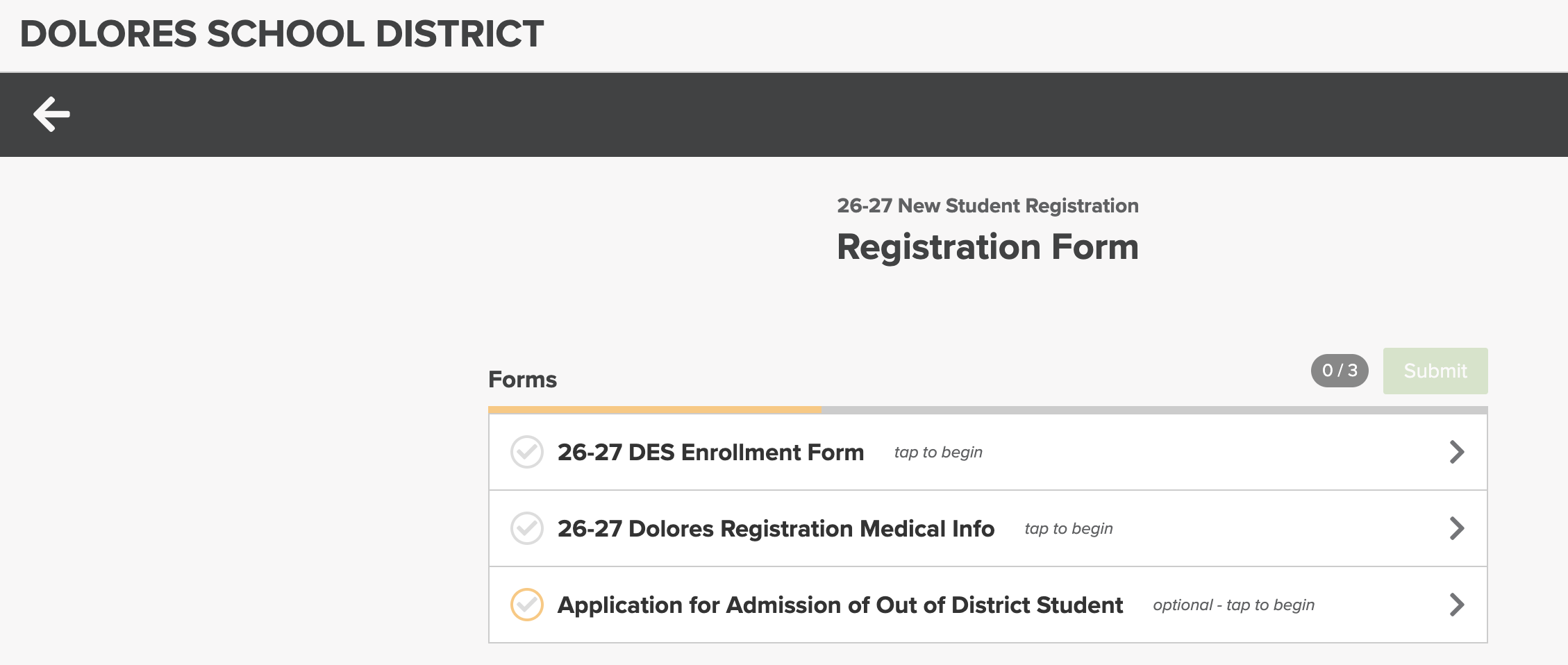
Once the required forms have been completed, click the “Submit” button and the registration for this student is complete and will be marked as “Pending Review”, “Nothing to Do”